

This Photoshop tutorial is about how to make business style greeting card ( Merry Christmas Message - Happy New Year ) in a few steps, which you can present to your chief or colleagues. Okay, let's st
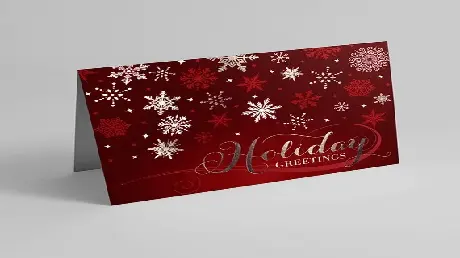
This Photoshop tutorial is about how to make business style greeting card ( Merry Christmas Message - Happy New Year ) in a few steps, which you can present to your chief or colleagues.
Okay, let's start! Create a new document sized 500×700 pixels white background for Christmas wishes thanksgiving card.
 After that, find a nice Christmas card design, and a suitable stock photo to work with. Open up the photo and copy it to the main canvas, then move it down and reduce with Edit > Free Transformers on my picture below.
Time to up image sharpness. Use the Sharpen Tool to do this.
Now, I want to add a few lines ( happy holiday greetings) to the background. Do this by first finding and selecting the Pen Tool and making a shape like in the screenshot below. Use the color #8cbce8.
Then, use Layer > Rasterize > Shape to rasterize the current shape. To make the line transparent at the bottom, apply Quick Mask Mode with gradient as below:
Then, go back to Standard Mode. Now we have some selected areas. Press the Delete button to clear the selection.
 Ok, then remove the selection with Ctrl+D and set the opacity to 35% up.
Add two more lines in the same way.
Okay, then I would like to add some text ( Santa Claus seasons greetings ). Get out the Horizontal Type Tool (just the regular one) and write out something like ‘Merry’ in any color. I used the font Annabelle.
After that apply the next Blending Options to this layer:
Drop Shadow
Gradient Overlay
See the result below.
Now, use the Horizontal Type Tool again to write out the Christmas! word.
Apply the next Blending Options to this layer:
Drop Shadow
Gradient Overlay
We received an excellent inscription!
Okay, move to the next step. I would like to add some snowflakes to our business style greeting card. Select the Brush Tool and set the foreground color as #95c2ea and add to the canvas different-sized snowflakes.
 Looks good, isn't it? Okay, now select the Eraser Tool and a soft round brush of about 150 pixels to make a little clear work on the snowflakes.
That is it! Now we have a good professional-looking business holiday card! Merry Christmas card message!
How to Create a Business Style Greeting Card?
After that, find a nice Christmas card design, and a suitable stock photo to work with. Open up the photo and copy it to the main canvas, then move it down and reduce with Edit > Free Transformers on my picture below.
Time to up image sharpness. Use the Sharpen Tool to do this.
Now, I want to add a few lines ( happy holiday greetings) to the background. Do this by first finding and selecting the Pen Tool and making a shape like in the screenshot below. Use the color #8cbce8.
Then, use Layer > Rasterize > Shape to rasterize the current shape. To make the line transparent at the bottom, apply Quick Mask Mode with gradient as below:
Then, go back to Standard Mode. Now we have some selected areas. Press the Delete button to clear the selection.
Ok, then remove the selection with Ctrl+D and set the opacity to 35% up.
Add two more lines in the same way.
Okay, then I would like to add some text ( Santa Claus seasons greetings ). Get out the Horizontal Type Tool (just the regular one) and write out something like ‘Merry’ in any color. I used the font Annabelle.
After that apply the next Blending Options to this layer:
Drop Shadow
Gradient Overlay
See the result below.
Now, use the Horizontal Type Tool again to write out the Christmas! word.
Apply the next Blending Options to this layer:
Drop Shadow
Gradient Overlay
We received an excellent inscription!
Okay, move to the next step. I would like to add some snowflakes to our business style greeting card. Select the Brush Tool and set the foreground color as #95c2ea and add to the canvas different-sized snowflakes.
Looks good, isn't it? Okay, now select the Eraser Tool and a soft round brush of about 150 pixels to make a little clear work on the snowflakes.
That is it! Now we have a good professional-looking business holiday card! Merry Christmas card message!