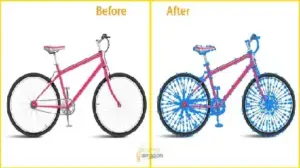



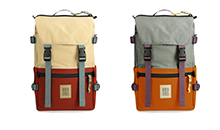
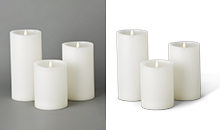
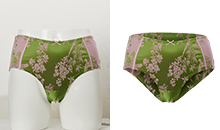


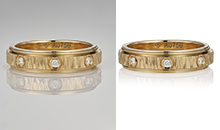

Website speed is no longer something you fix “later”. It directly affects your SEO, rankings, conversions, and even your hosting cost. And the biggest reason websites slow down? Heavy, unoptimised images.
If you can Resizing Images properly and reduce their weight without killing the visual quality, you’ll see a direct improvement in performance, user experience, and overall search visibility.
Why Image Optimization Matters So Much
1. It Affects SEO
Google’s Core Web Vitals judge how fast users can view your page.
One of the most important metrics—Largest Contentful Paint (LCP)—gets worse when your main images are too large. Slow LCP = lower rankings.
2. It Impacts Conversions
A delay of even 1 second on mobile can cut conversions by up to 20%. Slow pages make people leave before they even see your content.
3. It Cuts Hosting & CDN Costs
Smaller images mean less bandwidth, fewer server requests, and lower monthly bills.
4. The Real Goal
We aren’t trying to keep the original file quality; we want to keep the visual quality while reducing the file size aggressively.
For most main website images, a good target is under 100 KB.
How to Make Clothes Transparent in Photoshop (2025 Guide) – Step-by-Step + Free Test Images
Pre-Processing: Build a Clean Base Before Resizing
Before resizing, make sure your foundation is correct. Most bad-quality images online happen because this step gets skipped.
Start With a High-Resolution Source
Always begin with a crisp, high-resolution image (3000px+ when possible).
You can shrink large images without losing quality—but increasing resolution always reduces sharpness.
Ideal rule:
Use a source image at least 2× bigger than your final display size.
Set Your Target Dimensions
Choose the exact width needed for the section you’re designing.
Common web sizes:
- Blogs / Banners: 1200–1600 px wide
- Thumbnails: 400–800 px
- Profile photos: 400×400px
DPI/PPI Doesn’t Matter for Web
Web browsers only care about pixels. DPI is a print setting.
Ignore it completely for online use.
Crop Before Resizing
Fix your aspect ratio first, then resize.
Common ratios:
- 1:1 for square content
- 16:9 for banners and headers
- 4:5 for social portraits
The Best Way to Resize in Photoshop (Modern Method)
The old “Save for Web” option is outdated.
The most reliable, clean, and efficient method today is Export As…
Steps:
- Open your high-resolution image.
- Go to File → Export → Export As…
(Shortcut: Alt + Shift + Ctrl + W on Windows / Option + Shift + Cmd + W on Mac) - Adjust these settings:
| Setting | Recommended Value |
|---|---|
| Format | JPEG for photos, PNG-8 for graphics |
| Quality | 60–80% (usually keeps file under 100 KB) |
| Image Size | Enter exact width (e.g., 1400px) |
| Resample | Bicubic Sharper (best for reducing size) |
| Metadata | Only Copyright & Web |
| Color Space | Enable “Convert to sRGB” |
This gives you a clean, light, sharp image suited for all browsers.
Method B: Bulk Compression & Advanced Optimization
If you need mass compression or better control, use these tools:
Squoosh.app
- Great for manual fine-tuning
- Supports WebP and AVIF
- Often cuts file sizes 20–50% smaller than JPEG with no visible loss
ImageOptim (Mac) / XnConvert (PC)
- Good for batch exports
- Removes unnecessary data
- Uses smart algorithms like MozJPEG and Zopfli
CMS Plugins (WordPress/Shopify)
Tools like Imagify or ShortPixel automatically:
- Resize on upload
- Convert to WebP
- Serve the smallest version based on the visitor’s browser.
Choosing the Best Image Format in 2025 and Beyond
Modern browsers support faster, lighter image formats. To get the best performance:
WebP
- Works for nearly all images
- Cleaner and smaller than JPEG
- Supports transparency
AVIF
- Even stronger compression
- Perfect for high-quality visuals
- Requires modern browser support
SVG
- Best for icons, logos, and shapes
- Infinitely scalable
- Extremely small file size
Recommended Strategy
Convert your export to WebP and use the HTML <picture> tag to serve WebP first, with JPEG as a fallback.
Recommended Settings for Each Image Type
| Use Case | Ideal Dimensions | Ratio | Target Size | Best Format |
|---|---|---|---|---|
| E-commerce Product | 1000–2000px | 1:1 | <150 KB | WebP (JPEG fallback) |
| Blog Hero / Banner | 1200–1600px | 16:9 or 2:1 | <100 KB | WebP (JPEG fallback) |
| Profile Photo | 400×400px | 1:1 | <50 KB | WebP |
| Logos / Icons | N/A | N/A | <5 KB | SVG |
Best Ghost Mannequin Services for E-Commerce in 2025
Final Thoughts
When your images load fast, everything else on your website becomes easier—ranking, conversions, user experience, and even ads.
The technique is simple: start with a strong source, resize properly, export with the right method, and use a modern format like WebP.
If you follow these steps, you’ll shrink your file sizes without hurting visual quality—and your website will feel instantly faster.