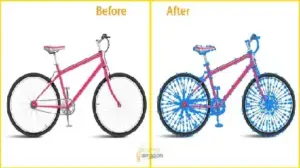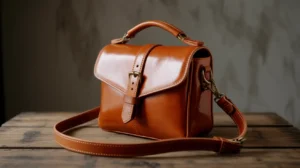

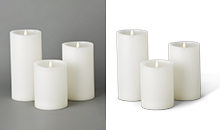
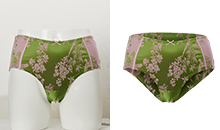

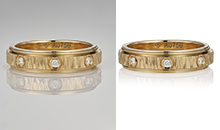

If you’ve ever looked at your product photo and felt something was off, chances are the problem wasn’t the exposure, the angles, or even the retouching—it was the shadows.
Natural shadows are the difference between a flat, “cut-out” product image… and a premium, believable, high-converting product shot.
As someone who has spent over a decade shooting and retouching products for eCommerce brands, agencies, and marketplaces, I can confidently say that mastering shadows is one of the smartest skills you can learn. It boosts realism, perceived quality, and click-through rate—sometimes more than expensive gear upgrades.
In this article, you’ll learn:
- Why natural shadows matter
- The different types of shadows
- How to add shadows using Photoshop, Lightroom, Canva, and mobile apps
- Step-by-step workflows—including neck-joint/ghost mannequin shadows
- Market pricing trends for shadow editing
- Common mistakes to avoid
- Pro retoucher tips to polish the final image
Let’s dive in.
Why Shadows Matter in Product Photography
Shadows are not just dark areas.
They communicate:
- Depth
- Weight
- Shape
- Position in space
- Material texture
- Lighting direction
Without shadows, a product looks fake, floating, or poorly cut out.
With natural shadows, your product:
- Feels grounded
- Looks more premium
- Appears professionally photographed
- Gains “real-world” dimension
This is especially important for:
- eCommerce product pages
- Marketplace listings (Amazon, eBay, Shopify, Etsy)
- Catalogues & lookbooks
- Ad creatives & banners
- Social media product showcases Types of Shadows You Can Add
Before choosing the right technique, understand the main shadow categories:
1. Drop Shadow
A soft, natural-looking shadow under the object.
Used for: shoes, bags, accessories, bottles, electronics.
2. Cast Shadow
Created based on the direction of light.
Used for: Dramatic lifestyle product shots.
3. Reflection Shadow
A glossy, mirror-like shadow.
Used for: cosmetics, sunglasses, perfumes, and tech products.
4. Transparent/Soft Floor Shadow
Very subtle grounding shadow.
Used for: Minimal, modern eCommerce style.
5. Ghost Mannequin Neck Joint Shadow
For apparel shots using ghost mannequin or invisible mannequin photography.
Used for: T-shirts, jackets, hoodies, and dresses.
Knowing what shadow matches your product style is half the battle.
Tools You Can Use to Add Natural Shadows
Here are the most popular tools for shadow creation:
1. Adobe Photoshop (industry standard)
Best for: Professional eCommerce, ghost mannequins, cast shadows, drop shadows.
Cost:
- Approx. $22.99/month (photography plan varies globally).
2. Lightroom
Best for: Natural enhancement, soft shadows, mobile retouching.
Cost:
- $9.99–$19.99/month (depending on plan).
3. Canva
Best for: Beginners, quick edits, social media.
Cost:
- Free version + Pro at $12.99/month.
4. Photopea
Best for: Free Photoshop-like tool.
Cost:
- Free (ad-supported).
5. Mobile Apps (Snapseed, Lightroom Mobile, PicsArt)
Best for: Quick on-the-go adjustments.
Cost:
- Mostly free with optional upgrades.
Step-by-Step: Add Natural Drop Shadows in Photoshop
This is the most requested method because drop shadows are essential for clean eCommerce images.
Step 1: Cut Out the Product
Use one of these tools:
- Pen Tool (most accurate)
- Object Selection Tool
- Quick Selection Tool
Refine using:
- Select & Mask → Smooth 2–5
- Feather 0.5–1
- Contrast 5–10
Step 2: Place Product on a White or Light Background
Create a new layer → Fill with #FFFFFF.
Keep the product layer above the background.
Step 3: Create the Shadow Layer
- Duplicate product layer
- Move the duplicated layer below the original.
- Go to: Filter → Blur → Gaussian Blur
- Set blur between 20 and 80 px depending on product size.
Step 4: Transform the Shadow
Press Ctrl/Cmd + T
Right-click → Distort / Perspective / Skew
Adjust until the shadow “falls” naturally.
Step 5: Fade the Shadow
- Reduce opacity to 20–60%.
- Set blending mode to Multiply.
- Create a soft eraser mask for the far edges
Step 6: Soften the Base
Use a large soft brush, 0% hardness.
Erase lightly where shadows shouldn’t be too harsh.
Photoshop Settings (Pro Recommended Presets)
- Gaussian Blur: 25–60 px
- Opacity: 30–50%
- Multiply Mode: On
- Shadow Colour: #000000 with 10–20% fill
- Shadow Distance: 5–20px
Creating Realistic Cast Shadows (Photoshop)
Cast shadows make the product look dramatically lit.
Steps:
- Duplicate product layer
- Fill it with black.
- Transform → Skew + Distort to create angle
- Apply Gaussian Blur (10–40 px).
- Lower opacity to 15–40%.
- Mask the edges for a natural fade
- Adjust warmth using colour balance if needed.
This gives a lifestyle, artistic look rather than a standard eCommerce look.
How to Add Reflection Shadows in Photoshop
Reflection shadows make products look glossy—great for cosmetics, tech, watches, etc.
Steps:
- Duplicate the product layer.
- Flip vertically (Edit → Transform → Flip Vertical).
- Align bottom edges.
- Add a gradient mask to fade downward.
- Lower opacity to 10–30%.
- Add Blur (optional)
For a luxury look, use a subtle blue or gold tint (#d4d9f5 or #f0e8c9).
How to Add Shadows in Lightroom
Lightroom does not add shadows manually like Photoshop, but it makes natural shadows look cleaner.
Use These Adjustments:
- Shadows: -10 to -40
- Blacks: -5 to -25
- Texture: +10 to +20
- Clarity: +5
- Dehaze: +2 (optional)
Brush Tool for Ground Shadows
- Exposure: -0.20
- Blacks: -20
- Feather: 70–100
Paint under the product to enhance natural grounding.
How to Add Shadows in Canva (Beginner-Friendly)
Canva is simple but effective.
Method 1: Built-in Shadow Effects
- Upload product
- Click “Edit Image”.
- Go to “Shadows”.
- Choose:
- Drop
- Glow
- Backdrop
- Adjust:
- Blur
- Transparency
- Angle
- Distance
Method 2: Manual Shadow Layer
If built-in shadows look fake:
- Duplicate the product.
- Adjust brightness to -100.
- Blur it.
- Reduce transparency.
- Skew slightly.
Not perfect, but good for quick marketing graphics.
How to Add Shadows in Photopea (Free Photoshop Alternative)
Photopea follows the same steps as Photoshop:
- Duplicate
- Fill with black.
- Gaussian Blur
- Transform
- Mask
It works in-browser and supports PSD files.
Ghost Mannequin / Neck Joint Shadow Workflow
This is one of the most advanced shadow techniques—and one of the most profitable services in the industry.
Used For:
- T-shirts
- Jackets
- Hoodies
- Dresses
- Pants
- Tops
Requirements:
- Front view
- Back view
- Neck inner area shot
Step-by-Step Workflow:
Step 1: Select Main Garment
Use the Pen Tool → precise selection around the apparel.
Step 2: Cut Out & Clean Edges
Feather slightly (0.5–1px).
Step 3: Bring in the Neck/Inner Part
Place the mannequin’s inner area behind the main garment.
Step 4: Align the Shape
Transform → Warp to match exactly.
Step 5: Add Neck Joint Shadow
Create a soft shadow where the inner and outer fabric meet.
Use this brush setting:
- Soft round brush
- Opacity: 10–15%
- Flow: 5–8%
- Color: #000000
Paint slowly around:
- Neckline
- Shoulder drop
- Inner fabric folds
Step 6: Add Bottom Shadows (Optional)
Products like jackets need undershadow at the bottom hem.
Step 7: Final Polish
- Remove dust.
- Fix wrinkles.
- Improve color
- Add symmetry.
- Add a natural grounding shadow under the garment.
Pricing Breakdown (Global Market)
Cost ranges depend on region & complexity.
Drop Shadows
- Low Tier: $0.30–$0.70 per image
- Mid Tier: $1–$3 per image
- Agency/Pro: $5–$12 per image
Cast Shadows
- Low Tier: $0.50–$1
- Mid Tier: $2–$5
- Pro: $5–$15
Reflection Shadows
- $1–$5 per image
Ghost Mannequin Shadows + Neck Joint
- $3–$12 per image
- Jacket/dress complex: $10–$25
Full eCommerce Retouch with Shadows
- $5–$25 per image
- Bulk pricing available
This makes shadow creation a profitable service if you’re offering it to clients.
Comparison: Photoshop vs Canva vs Mobile vs Lightroom
Photoshop
- Most accurate
- Suitable for professional eCommerce
- Allows infinite control
- Best for neck joint, drop, cast shadows
Canva
- Fast, easy
- Limited realism
- Good for social media marketing
Lightroom
- Enhances existing shadows
- Not suitable for creating new shadows from scratch
Mobile Apps
- Good for influencers & simple edits
- Not suitable for commercial product listings
Common Mistakes to Avoid
❌ Shadow too dark
❌ Shadow too sharp (should always be soft)
❌ Wrong direction
❌ Too wide or too long
❌ Floating products with no grounding
❌ Overuse of gradient tool
❌ Reflection shadow too strong
❌ No feathering on edges
❌ Incorrect perspective in cast shadows
❌ Pure black shadow (#000) with no transparency
Pro Tips From a Product Photographer
✔ Use large softbox lighting to create natural base shadows.
✔ Always photograph products on a slightly textured surface.
✔ Keep the light direction consistent.
✔ For shiny products, use reflection shadows sparingly.
✔ For apparel, add micro-shadows around sleeves and collars.
✔ Stick to 5000–5500K daylight temperature.
✔ For white backgrounds, keep shadows subtle but visible.
✔ Use colour grading to blend shadows naturally.
Final Polishing Workflow (Must-Use)
Here’s my actual finishing workflow used for commercial clients:
- Add natural shadow.
- Clean background
- Remove dust, scratches, fingerprints.
- Fix exposure and colour.
- Add micro-contrast using Curves.
- Add tiny texture using the High Pass Filter (1–2 px).
- Sharpen edges.
- Export in:
- PNG for transparent
- JPG (2500–3000 px wide, 85% quality) for eCommerce
- WebP for website speed
Use internal links naturally like this:
- Read our guide on product retouching techniques.
- Learn how to shoot apparel with ghost mannequin photography.
- Explore our photo editing services.
Replace URLs with your own pages.
Conclusion: Shadows Make Your Product Look Real, Premium & Sell-Ready
Adding natural shadows is not just an editing task—it’s a sales strategy.
Good shadows increase:
- Product realism
- Customer trust
- Conversion rate
- Brand quality perception
Whether you’re using Photoshop, Canva, Lightroom, or mobile apps, you now have every method, setting, workflow, and pro tip needed to create studio-quality shadows.