









What You Will Know by the End of This Guide
By the time you finish this article, you will:
- Know essential Photoshop shortcuts used by professionals daily.
- Understand why each shortcut matters in real editing workflows.
- Save hours of editing time with proven key combinations.
- Edit faster, cleaner, and with fewer interruptions.
- Work confidently across Windows and macOS.
This guide is written for working photo editors, retouchers, designers, and advanced learners who want speed without sacrificing control.
Why Photoshop Shortcuts Matter for Professional Editors
Professional photo editing is not about knowing tools. It is about how fast and accurately you can access them. Every mouse movement slows you down. Every menu click breaks focus.
Photoshop shortcuts allow you to:
- Maintain creative flow.
- Reduce repetitive strain.
- Edit consistently across large projects.
- Meet deadlines without rushing quality.
This is why Photoshop shortcuts every professional photo editor should know are not optional.
They are a core skill.
Photoshop Shortcuts Every Professional Photo Editor Should Know for Navigation
Zoom and View Control Shortcuts
Precise navigation is the foundation of professional editing.
- Ctrl + + / Ctrl + – (Windows)
- Cmd + + / Cmd + – (Mac)
Zoom in and out smoothly. - Ctrl + 0 / Cmd + 0
Fit image to screen. - Ctrl + 1 / Cmd + 1
View at 100% accuracy. Essential for retouching. - Hold Spacebar.
Temporary hand tool for fast canvas movement.
Why it matters:
These shortcuts keep your eyes on the image, not the interface.
Rotate and Reset View
- R
Rotate View Tool. - Esc
Reset rotated view instantly.
Used frequently in high-detail retouching and compositing work.
Photoshop Shortcuts Every Professional Photo Editor Should Know for Layers
Core Layer Management Shortcuts
Layers are the backbone of non-destructive editing.
- Ctrl + J / Cmd + J
Duplicate the selected layer. - Ctrl + Shift + N / Cmd + Shift + N
Create a new layer. - Ctrl + G / Cmd + G
Group selected layers. - Ctrl + Shift + G / Cmd + Shift + G
Ungroup layers.
Professional tip:
Grouping layers improves file organisation and client handoff quality.
Layer Visibility and Selection
- Alt + Click Eye Icon (Windows)
- Option + Click Eye Icon (Mac)
Solo a layer instantly. - Ctrl + Click Layer Thumbnail
Load layer selection.
Used heavily in masking and compositing.
Photoshop Shortcuts Every Professional Photo Editor Should Know for Selection
Selection Tool Shortcuts
Fast selections separate amateurs from professionals.
- V – Move Tool
- M – Marquee Tool
- L – Lasso Tool
- W – Object Selection / Magic Wand
- P – Pen Tool
Switching tools instantly avoids workflow breaks.
Selection Refinement Shortcuts
- Ctrl + D / Cmd + D
Deselect selection. - Ctrl + Shift + I / Cmd + Shift + I
Invert selection. - Shift + Click
Add to selection. - Alt / Option + Click
Subtract from selection.
These shortcuts are critical for accurate cut-outs.
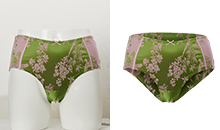
How to Create the Ghost Mannequin Effect in Photoshop (Step-by-Step Guide)
Photoshop Shortcuts Every Professional Photo Editor Should Know for Masking
Layer Mask Shortcuts
Masks are essential for professional, reversible edits.
- Add Layer Mask Button
Adds a mask to the selected layer. - Ctrl + I / Cmd + I
Invert the mask instantly. - Shift + Click Mask
Temporarily disable mask.
Used extensively in portrait retouching and composites.
Brush Control on Masks
- B – Brush Tool
- X – Switch foreground/background colors
- [ / ] – Decrease or increase brush size
Why professionals rely on this:
It allows precise masking without menu navigation.
Photoshop Shortcuts Every Professional Photo Editor Should Know for Retouching
Healing and Clone Tools
- J
Cycle through healing tools. - S
Clone Stamp Tool. - Alt/Option + Click
Define source point.
These shortcuts are used constantly in skin retouching and object removal.
Dodge and Burn Shortcuts
- O
Dodge, Burn, or Sponge Tool.
Used in frequency separation and contour enhancement.
How to Make Clipping Path in Photoshop | The Ultimate Guide by Clipping Path Zone
Photoshop Shortcuts Every Professional Photo Editor Should Know for Adjustment Layers
Creating Adjustment Layers Faster
- Alt + Click Adjustment Icon
Creates an adjustment layer with a dialogue box. - Ctrl + Alt + G / Cmd + Option + G
Create a clipping mask.
This allows targeted color and exposure adjustments.
Common Adjustment Shortcuts
- Ctrl + L / Cmd + L
Levels. - Ctrl + M / Cmd + M
Curves. - Ctrl + U / Cmd + U
Hue/Saturation.
These shortcuts are core to professional color grading.
Photoshop Shortcuts Every Professional Photo Editor Should Know for Transformations
Transform Controls
- Ctrl + T / Cmd + T
Free Transform. - Shift + Drag Corner
Scale proportionally (modern Photoshop auto-scales). - Enter/Return
Apply transformation.
Used in compositing, layout work, and resizing.
Warp and Distort
- Right-Click While Transforming
Access Warp, Distort, and Perspective.
Essential for advanced manipulation work.
Photoshop Shortcuts Every Professional Photo Editor Should Know for Text
Text Tool Shortcuts
- T
Type Tool. - Ctrl + Enter / Cmd + Enter
Commit text. - Ctrl + Shift + > / <
Increase or decrease font size.
Used in posters, thumbnails, and social creatives.
Photoshop Shortcuts Every Professional Photo Editor Should Know for Workflow Speed
Undo and History Control
- Ctrl + Z / Cmd + Z
Undo or redo. - Ctrl + Alt + Z / Cmd + Option + Z
Step backward multiple times.
Professional editors rely on this for experimentation.
Save and Export Shortcuts
- Ctrl + S / Cmd + S
Save file. - Ctrl + Shift + S / Cmd + Shift + S
Save As. - Ctrl + Alt + Shift + S / Cmd + Option + Shift + S
Export for Web.
These shortcuts prevent data loss and speed delivery.
Learn the Photoshop Image Swap and Blend Technique in just 14 easy steps
Photoshop Shortcuts Every Professional Photo Editor Should Know for Customisation
Creating Custom Shortcuts
Professional editors often customise shortcuts.
- Go to Edit → Keyboard Shortcuts
- Assign unused keys to frequent actions.
- Save shortcut presets for portability.
Why this matters:
Custom shortcuts match your editing style, not generic defaults.
Photoshop Shortcuts Every Professional Photo Editor Should Know: Windows vs Mac Differences
Most shortcuts are identical except:
- Ctrl = Cmd
- Alt = Option
Understanding this ensures smooth collaboration worldwide.
How Professionals Actually Memorise Photoshop Shortcuts
Professionals do not memorise everything at once.
They:
- Learn 10 shortcuts per week.
- Use them daily until automatic.
- Add advanced shortcuts gradually.
- Customise based on workflow.
Consistency matters more than volume.
Common Mistakes Editors Make with Shortcuts
- Trying to learn all shortcuts at once
- Ignoring masking and selection shortcuts
- Relying too much on menus
- Not customizing shortcuts
Avoiding these mistakes accelerates mastery.
Final Thoughts on Photoshop Shortcuts Every Professional Photo Editor Should Know
Speed is a professional advantage. Accuracy is a professional standard. Shortcuts give you both. Learning Photoshop shortcuts every professional photo editor should know is not about impressing others.
It is about working smarter, delivering faster, and maintaining quality under pressure.
Master these shortcuts. Your editing workflow will never feel slow again.