


Introduction
You don’t need a $5,000 camera or a professional studio to take great product photos. Seriously. Some of the best Shopify stores you’ve seen? Their product images were taken with a $30 lightbox and a smartphone.
The difference isn’t gear. It’s knowing what to do — and what to do after the shoot.
This guide walks you through setting up a complete DIY product photography studio for under $50. You’ll learn exactly what to buy, how to set it up, and how to edit product photos for Shopify so they actually convert browsers into buyers.
Whether you’re in the US, UK, or Canada, these tools are widely available — and the techniques work for any niche.
Let’s get into it.
Why Product Photography Actually Matters on Shopify
Think about the last time you bought something online. What convinced you?
Probably the photo.
According to Shopify’s own research, product images are the #1 factor influencing purchase decisions for online shoppers. About 75% of shoppers rely on product photos when deciding what to buy.
Your customer can’t touch, smell, or try on your product. Your photos do all of that work.
Bad photos create doubt. Good photos build trust.
And here’s what most beginners don’t realize: post-processing matters just as much as the shoot itself. Knowing how to edit product photos for Shopify is the skill that separates average listings from professional-looking stores.
What You’ll Need: Full Setup Under $50
Here’s the complete shopping list. You can find everything on Amazon, IKEA, or local dollar stores.
| Item | Approximate Cost (USD) | Where to Get It |
|---|---|---|
| Portable LED lightbox (40cm) | $20–$28 | Amazon |
| White foam boards (pack of 3) | $4–$6 | Dollar Tree / Poundland |
| Clip-on ring light (small) | $8–$12 | Amazon / eBay |
| Wireless phone shutter remote | $6–$9 | Amazon |
| White craft paper (backdrop roll) | $5–$8 | Michaels / Hobbycraft |
| Tape and binder clips | $2–$3 | Dollar store |
| Total | ~$45–$66 | — |
Pro Tip: If you already have a decent smartphone (iPhone 12 or newer, Samsung Galaxy S20+, or Google Pixel 5+), you don’t need to buy a camera. These phones shoot better product photos than most entry-level DSLRs.
Step-by-Step: Building Your DIY Photography Setup
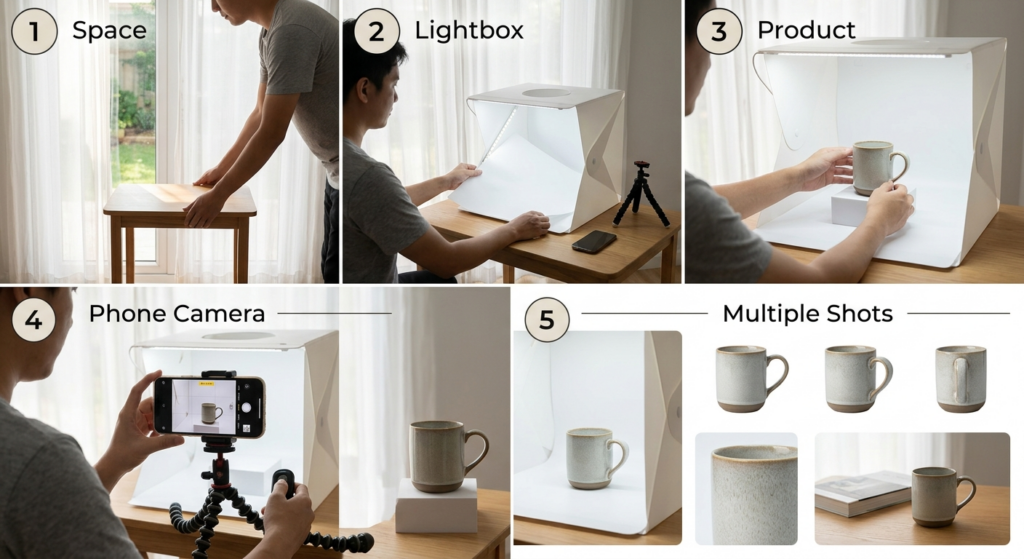
Step 1: Choose Your Space
You don’t need a whole room. A small table near a window is enough.
North-facing windows are best — they give soft, consistent natural light without harsh shadows. South or west-facing windows create harsh midday light that’s tricky to work with.
If natural light isn’t available or consistent, that’s fine. Your lightbox will handle it.
Step 2: Set Up Your Lightbox
A portable LED lightbox is the single best investment for product photography under $50.
It gives you:
- Diffused, even lighting
- A clean white or black background
- Consistent results no matter the time of day
Most 40cm lightboxes fold flat and take about two minutes to set up. They come with built-in LED strips on both sides and interchangeable backgrounds.
Setup tips:
- Place it on a steady table
- Use the white background for most products (electronics, cosmetics, clothing, food)
- Use the black background for jewelry, glass, or dark-colored items
- Switch off overhead lights when shooting inside the lightbox — you want the LED light to be the only source
Step 3: Position Your Product
Small adjustments make a big visual difference.
- Center the product inside the lightbox
- Elevate flat products slightly using a small box covered with white paper
- Rotate and test multiple angles before shooting
- For clothing or soft goods, use a mannequin, hanger, or flat lay layout
- For reflective items like watches or jewelry, angle the product slightly to reduce glare
Step 4: Set Up Your Phone Camera
Your phone camera settings matter more than most people think.
Do this every time:
- Lock exposure and focus — tap and hold on the product in your camera app until the AE/AF lock appears
- Turn off Portrait Mode — it blurs backgrounds you may want sharp
- Use the rear camera — front cameras have lower resolution
- Enable grid lines — helps with composition and straight angles
- Shoot in the highest resolution available
- Use a tripod or prop your phone — even slight movement kills sharpness
Use the wireless remote shutter so you’re not physically touching the phone when you take the shot.
Step 5: Take Multiple Shots
Never rely on one photo per product.
Take at least 5–7 shots per product angle, including:
- Front view (hero shot)
- Back view
- Side angle (45 degrees)
- Close-up of texture or key features
- Lifestyle shot if possible (product in use or in context)
Shopify recommends using at least 3–5 images per product listing to increase buyer confidence.
Lighting Tips That Make a Huge Difference
Lighting is where beginners lose the most ground. Here are three simple techniques that work.
Use Diffusion
If your lightbox feels too harsh, tape a sheet of white tissue paper over one of the LED panels. It softens shadows without losing brightness.
Bounce Light with Foam Boards
Place a white foam board opposite your light source. It reflects light back onto the dark side of your product — this is called a fill card, and it eliminates harsh shadows.
Avoid Mixed Light Sources
Don’t mix your LED lightbox with a window and an overhead bulb at the same time. Each light source has a different color temperature. The result is an orange-yellow cast that looks awful and is hard to fix in editing.
Pick one light source and stick to it.
How to Edit Product Photos for Shopify (Step-by-Step)
This is where the magic happens. A good edit can take a decent photo to a professional-looking image that belongs on any premium Shopify store.
Here’s what to focus on.
Tools You Can Use
You don’t need Photoshop. Here are your options:
Free tools:
- Lightroom Mobile (iOS/Android) — best all-around free editor
- Snapseed — great for quick adjustments
- Remove.bg — automated background removal
- Canva — for adding text, white backgrounds, or product mockups
Paid (but affordable):
- Adobe Photoshop (~$20/month) — industry standard
- Pixlr — browser-based, cheaper alternative
- Luminar Neo — AI-powered photo editing, great for beginners
Core Edits Every Product Photo Needs
1. White balance correction If your photo looks yellow or blue, fix the white balance first. In Lightroom Mobile, use the “Temp” slider. Push toward blue if too warm, toward yellow if too cool. Your whites should look white — not cream or gray.
2. Exposure and brightness Most product photos benefit from being slightly brighter than what the camera captured. Increase exposure slightly. Don’t blow out highlights.
3. Contrast A small contrast boost (5–15 points) makes products look crisper and more defined.
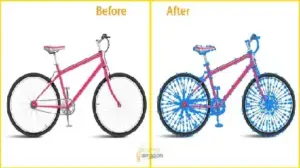
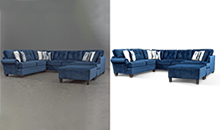
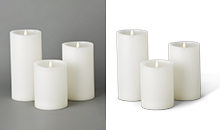
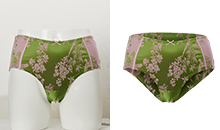
4. Background cleanup Even inside a lightbox, backgrounds can look uneven or slightly gray. Increase whites and highlights to brighten a white background. For a cleaner result, use background removal services to get that crisp, pure white background Shopify recommends.
5. Sharpness Add a gentle sharpness boost (10–20 points). Don’t overdo it — over-sharpened photos look artificial.
6. Color accuracy Make sure the product color in the photo matches the real product. Use Hue/Saturation to fine-tune individual colors. This is especially important for clothing, cosmetics, and home decor.
Shopify Image Specs to Know
| Spec | Requirement |
|---|---|
| Minimum resolution | 800 x 800 pixels |
| Recommended | 2048 x 2048 pixels |
| Aspect ratio | 1:1 (square) preferred |
| File format | JPG or PNG |
| Max file size | Under 20MB (ideally under 2MB for page speed) |
| Background | White (#FFFFFF) is strongly recommended |
Shopify recommends square images for consistent display across all themes. Inconsistent aspect ratios create layout issues on product pages.
Background Removal: The One Edit That Changes Everything
Here’s something most Shopify sellers don’t realize until too late.
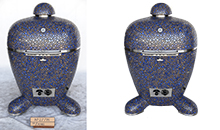
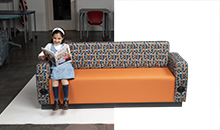
Even with a lightbox, your background is rarely perfect white. There are shadows, gradients, and slight discoloration. On a live product page, these imperfections look unprofessional — especially when compared to major competitors.
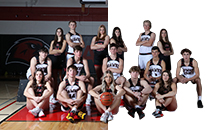
Background removal fixes this completely. It isolates the product against a pure white (or transparent) background.
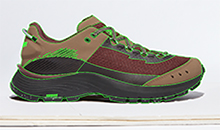
You can do it yourself using tools like Remove.bg or Photoshop’s Select Subject feature. But for complex products — items with hair, fur, see-through fabric, or intricate edges — automated tools often fail.
For professional results at scale, expert background removal services handle even the most complex product cutouts with pixel-level precision.
This is worth the investment if you’re selling regularly on Shopify. Clean backgrounds directly impact conversion rates.
Product-Specific Photography Tips
Different products need different approaches. Here’s a quick breakdown.
Clothing & Apparel
- Use a mannequin or hanger for shape and structure
- Flat lay works well for folded items, accessories, and children’s clothing
- Iron or steam garments before shooting — wrinkles show up clearly in photos
- For complex apparel editing, ghost mannequin services create that clean, invisible mannequin look seen in fashion retail
Jewelry & Accessories
- Use macro mode on your phone for close-up detail shots
- Black velvet or acrylic surfaces reduce glare on metal
- Reflections are tricky — slight angle adjustments help more than post-editing
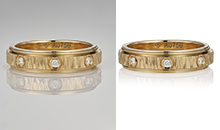
- Specialized jewelry retouching can enhance sparkle, correct color, and remove micro-scratches from product shots
Electronics & Small Gadgets
- White background is standard
- Shoot at eye level or slightly above
- Show ports, buttons, and key features in close-up shots
- Include lifestyle shots showing the product in use
Food & Cosmetics
- Natural light works beautifully for these categories
- Use a white marble or light wood surface as a base
- Props like bowls, spoons, or greenery can enhance context
- Keep post-editing subtle — food and skincare products should look appetizing, not over-processed
Common Mistakes Beginners Make (And How to Fix Them)
Mistake 1: Shooting in auto mode and hoping for the best
Auto mode is inconsistent. Lock your exposure and focus manually every time. Consistency across product photos is important for brand presentation.
Mistake 2: Not cleaning the product before shooting
Fingerprints, dust, and smudges are invisible in person but show up clearly in photos. Wipe down every product with a microfiber cloth before the shoot.
Mistake 3: Using only one angle
Customers want to see the product from multiple angles. One hero shot isn’t enough. Show them what they’re buying.
Mistake 4: Ignoring file size optimization
Large image files slow down your Shopify store. Slow pages hurt your Google ranking and increase bounce rates. Compress images using tools like TinyPNG or Shopify’s built-in compression before uploading.
Mistake 5: Inconsistent editing across listings
If half your products have warm-toned backgrounds and the other half are cool-toned, your store looks amateurish. Edit in batches and apply consistent presets or settings.
When to DIY vs. When to Use a Professional Service
DIY photography is perfect when:
- You’re launching your store and testing products
- You’re selling lower-ticket items
- You have time to learn and experiment
- Budget is tight
Professional editing becomes important when:
- You’re scaling and uploading hundreds of SKUs
- Your products are complex (clothing, jewelry, transparent items)
- You’re running paid ads where image quality directly affects ROI
- You want to match the visual quality of established competitors
A hybrid approach works well: shoot photos yourself, then use professional post-processing to finish the work. This gives you control over the creative process while ensuring the final output is polished.
Quick-Reference Checklist Before Every Shoot
Use this before you take a single photo.
Setup:
- Lightbox assembled and LEDs on
- All other lights in the room turned off
- White background in place (clean, no wrinkles or marks)
- Foam fill card positioned opposite the light
Product:
- Product wiped clean
- Labels straight and facing forward
- Any packaging props arranged
- Multiple angles planned
Phone / Camera:
- AE/AF lock engaged
- Grid lines on
- Highest resolution selected
- Wireless remote in hand
- Tripod or stable surface in use
Editing:
- White balance corrected
- Brightness and exposure adjusted
- Background cleaned up or removed
- File resized and compressed for Shopify
- Consistent look across all product photos
Frequently Asked Questions
Can I use my phone for Shopify product photography?
Absolutely. Modern smartphones — iPhone 13/14/15, Samsung Galaxy S21 and newer, Google Pixel 6 and up — produce excellent product photos when used correctly. The technique matters far more than the hardware. Use proper lighting, lock your focus, and shoot steady.
What’s the best background color for Shopify product photos?
White. Pure white (#FFFFFF) backgrounds are the Shopify standard for a reason. They load faster, look clean on any theme, and meet the requirements for selling on Amazon or Google Shopping if you ever expand. Some brands use light gray or lifestyle backgrounds for specific brand aesthetics, but white is the safe starting point.
How do I remove the background from product photos without Photoshop?
You have several options. Remove.bg does this automatically and works well for simple products. Canva has a built-in background remover in its paid plan. For high-volume or complex items, professional clipping path services deliver more accurate results than any automated tool.
How many photos do I need per Shopify product?
Shopify recommends a minimum of three to five images per product. Include a clean hero shot, at least two additional angles, a close-up showing texture or detail, and a lifestyle shot if possible. More images build more confidence — especially for higher-priced items.
What image size should I upload to Shopify?
The recommended size is 2048 x 2048 pixels in a 1:1 square ratio. Keep the file size under 2MB for fast page loading. JPG format works best for most products; PNG is better for items requiring transparent backgrounds.
What’s the biggest difference between amateur and professional product photos?
Background quality and post-editing. A clean white background with properly edited colors, brightness, and sharpness is what separates a store that looks trustworthy from one that looks like a side project. Shooting quality matters, but the edit is where it all comes together.
Do I need to hire a professional photographer?
Not necessarily. With the right setup and some practice, you can produce great photos yourself. However, if your product catalog is large or your category is competitive (fashion, jewelry, electronics), investing in professional photo editing services pays off quickly in higher conversion rates.
Final Thoughts
Building a product photography setup under $50 is completely doable. You don’t need to spend thousands to get professional-looking images.
What you do need is a consistent process: good lighting, a steady hand, clean backgrounds, and solid post-editing.
The lightbox alone changes everything. Add foam boards, a phone remote, and some editing skill — and you have a setup that rivals studios charging hundreds per hour.
Once your photos are shot, learning how to edit product photos for Shopify is the skill that will compound over time. Every listing you improve is more trust, more conversions, and more revenue.
Start simple. Shoot your first batch. Edit consistently. And keep improving as you go.
Related reading: If you’re managing a large Shopify catalog and need consistent, professional-grade editing at scale, explore e-commerce photo editing solutions built specifically for online retailers.